How to Compress Images Without Losing Quality
Learn how image compression works, the difference between lossy and lossless compression, and how to dramatically reduce image file sizes while keeping them visually perfect.
Published on July 22, 2026 · Last updated October 1, 2026
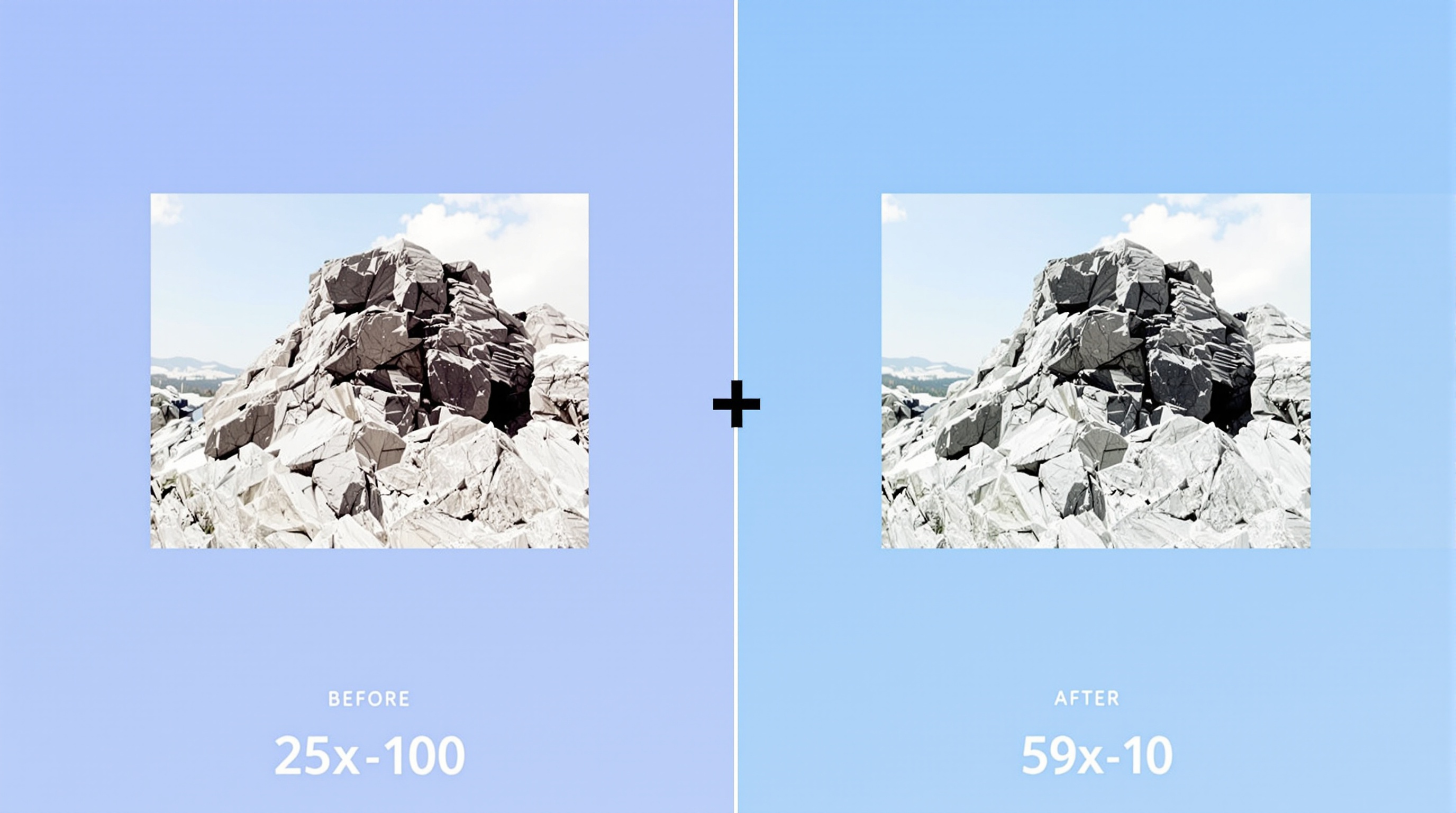
Key takeaways
- Lossy compression removes invisible detail for big savings; lossless keeps every pixel.
- 80 percent JPEG quality usually cuts file size by 60–70 percent with no visible change.
- Use PNG for logos and screenshots, JPEG for photos.
- Resize images to the size they are displayed at before compressing.
Why Image Compression Matters
Images make up the largest portion of most websites' total page weight — often accounting for 50-75% of the total download size. Unoptimized images slow down your website, consume users' mobile data, hurt your search engine rankings, and create a poor user experience. Google's research shows that 53% of mobile users abandon sites that take longer than 3 seconds to load. Image compression is one of the simplest and most impactful optimizations you can make.
Beyond websites, compressed images are essential for email attachments (most providers cap at 25MB), social media uploads, document embedding, and storage management. The good news: with modern compression techniques, you can often reduce image file sizes by 60-80% with virtually no visible quality loss.
Lossy vs Lossless Compression: What Is the Difference?
Image compression falls into two fundamental categories, and understanding the difference is key to choosing the right approach:
Lossless Compression
Lossless compression reduces file size without discarding any image data. The compressed file can be decompressed back to the exact original — pixel for pixel. This works by finding and eliminating statistical redundancy in the data. For example, if an image has a large area of solid blue sky, instead of storing "blue pixel, blue pixel, blue pixel..." thousands of times, the compression algorithm stores "repeat blue pixel 5000 times." The image quality is identical, but the file is smaller. PNG uses lossless compression. However, the file size reduction is typically modest — usually 10-40%.
Lossy Compression
Lossy compression achieves much larger file size reductions — often 60-90% — by selectively discarding visual information that the human eye is less likely to notice. JPEG is the most common lossy format. The algorithm analyzes the image and simplifies subtle color variations, smooth gradients, and fine texture details that are perceptually unimportant. At moderate compression levels, the difference is invisible to most viewers. At very high compression, you will see artifacts like blockiness, color banding, and blurring.
When to Use Each Compression Type
- Use lossy (JPEG) for: Photographs, complex images with many colors, website hero images, social media posts, email attachments, and any scenario where file size matters more than pixel-perfect reproduction
- Use lossless (PNG) for: Logos, icons, screenshots, text-heavy images, graphics with sharp edges, images requiring transparency, and any scenario where every pixel must be preserved
- Use WebP or AVIF for: Modern web delivery. Both support lossy and lossless modes and typically achieve 25-35% better compression than JPEG/PNG at equivalent quality. Our image converter supports all major formats
How Our Image Compressor Works
Our image compressor gives you full control over the compression process. Here is how to use it:
- Upload your image — Drag and drop or click to select. Supports JPEG, PNG, WebP, and other common formats
- Choose compression level — Use the quality slider to balance file size and visual quality. 80% quality is a great starting point for photos — it typically reduces file size by 60-70% with nearly invisible quality loss
- Preview the result — Our side-by-side comparison lets you zoom in and compare the original and compressed versions before downloading
- Download — Save the compressed image. The original file is never uploaded to any server — everything processes locally in your browser
Compression Tips for Different Use Cases
Website Images
For hero images and banners, compress to 70-80% JPEG quality. These images are typically viewed at screen resolution and from a normal viewing distance, so moderate compression is imperceptible. Also resize images to the actual display dimensions — do not upload a 4000px wide photo if it will only be displayed at 1200px.
E-commerce Product Photos
Product images need to look perfect. Compress at 85-90% JPEG quality for main images, and consider using 70% for thumbnail versions. For the zoom/lightbox view, use higher quality (90-95%) since customers will inspect details closely.
Email Attachments
Most email providers cap attachments at 25MB. For multiple photos, compress aggressively (60-70% quality) and resize to 1200px on the longest edge. You can fit 20-30 photos in a single email this way.
Print Materials
For print, compression is generally not recommended unless you are absolutely sure about the print requirements. Print needs much higher resolution (300 DPI) and quality than screen display. Use PNG or minimal JPEG compression (95-100%) for print assets.
How Much Can You Really Compress?
Typical results from our compressor at 80% JPEG quality:
- 5MB photo → 600KB (88% reduction)
- 2MB screenshot → 200KB (90% reduction)
- 10MB design file → 1.2MB (88% reduction)
- 500KB icon → 80KB (84% reduction)
These are realistic numbers based on actual usage data. The exact reduction depends on the image content — photos with lots of fine detail compress less than images with large smooth areas.
Conclusion
Image compression is a no-brainer optimization that every website owner, content creator, and business should use. With modern tools, you can reduce image file sizes by 60-90% while maintaining excellent visual quality. Try our free image compressor today — upload a photo and see the difference for yourself. Your website visitors and email recipients will thank you.
Frequently asked questions
How do I compress an image without losing quality?
Use 80 percent JPEG quality, which typically reduces file size by 60–70 percent with almost no visible change. For logos and text, use lossless PNG instead.
What is the difference between lossy and lossless compression?
Lossy compression discards some visual detail for much smaller files, while lossless compression keeps every pixel and reduces size modestly.
Are my images uploaded when I compress them?
No. Our image compressor runs entirely in your browser, so your files never leave your device.
What quality setting should I use?
Use 80 percent for website photos, 85–90 percent for e-commerce product images, and lossless PNG for graphics with sharp edges or transparency.
QR Generator Editorial Team
Verified AuthorOur editorial team at QR Generator Online writes and reviews every article to keep it accurate, clear and genuinely useful. Each piece is fact-checked against current QR code standards, including the ISO/IEC 18004 specification, and updated when the details change. No fluff, no filler — just practical guidance you can apply right away.
Cite This Page
APA (7th Edition)
QR Generator Online. (2026-10-01). How to Compress Images Without Losing Quality. Retrieved ..., from https://qrgenrateronline.com/blog/how-to-compress-images-without-losing-quality
MLA (9th Edition)
“How to Compress Images Without Losing Quality.” QR Generator Online, 2026-10-01. Web. .... <https://qrgenrateronline.com/blog/how-to-compress-images-without-losing-quality>.
Chicago
QR Generator Online. “How to Compress Images Without Losing Quality.” Last modified 2026-10-01. Accessed .... https://qrgenrateronline.com/blog/how-to-compress-images-without-losing-quality.
Citation formats provided for academic and professional reference. Always verify against your institution's style guide.
Compress your images for free
Reduce image file sizes by 60–90 percent in your browser, with no upload and no quality loss you can see.
Open the image compressorRelated articles
How to Create a QR Code for Free (Step by Step)
Learn how to create beautiful, high-resolution QR codes online without paying a cent. Complete guide with step-by-step instructions for URLs, text, email, Wi-Fi, and more.

QR Codes for Business: A Complete Guide for 2026
Discover how businesses are using QR codes to boost customer engagement, streamline operations, and increase sales. Real examples and best practices included.

WiFi QR Code Guide for Home and Business
Stop spelling out your Wi-Fi password! Learn how to create Wi-Fi QR codes that let guests connect instantly. Perfect for cafes, hotels, offices, and home use.