WiFi QR Code Guide for Home and Business
Stop spelling out your Wi-Fi password! Learn how to create Wi-Fi QR codes that let guests connect instantly. Perfect for cafes, hotels, offices, and home use.
Published on June 10, 2026 · Last updated October 1, 2026
Key takeaways
- A WiFi QR code lets guests join your network by scanning, with no password typing.
- It encodes the network name, the password and the security type.
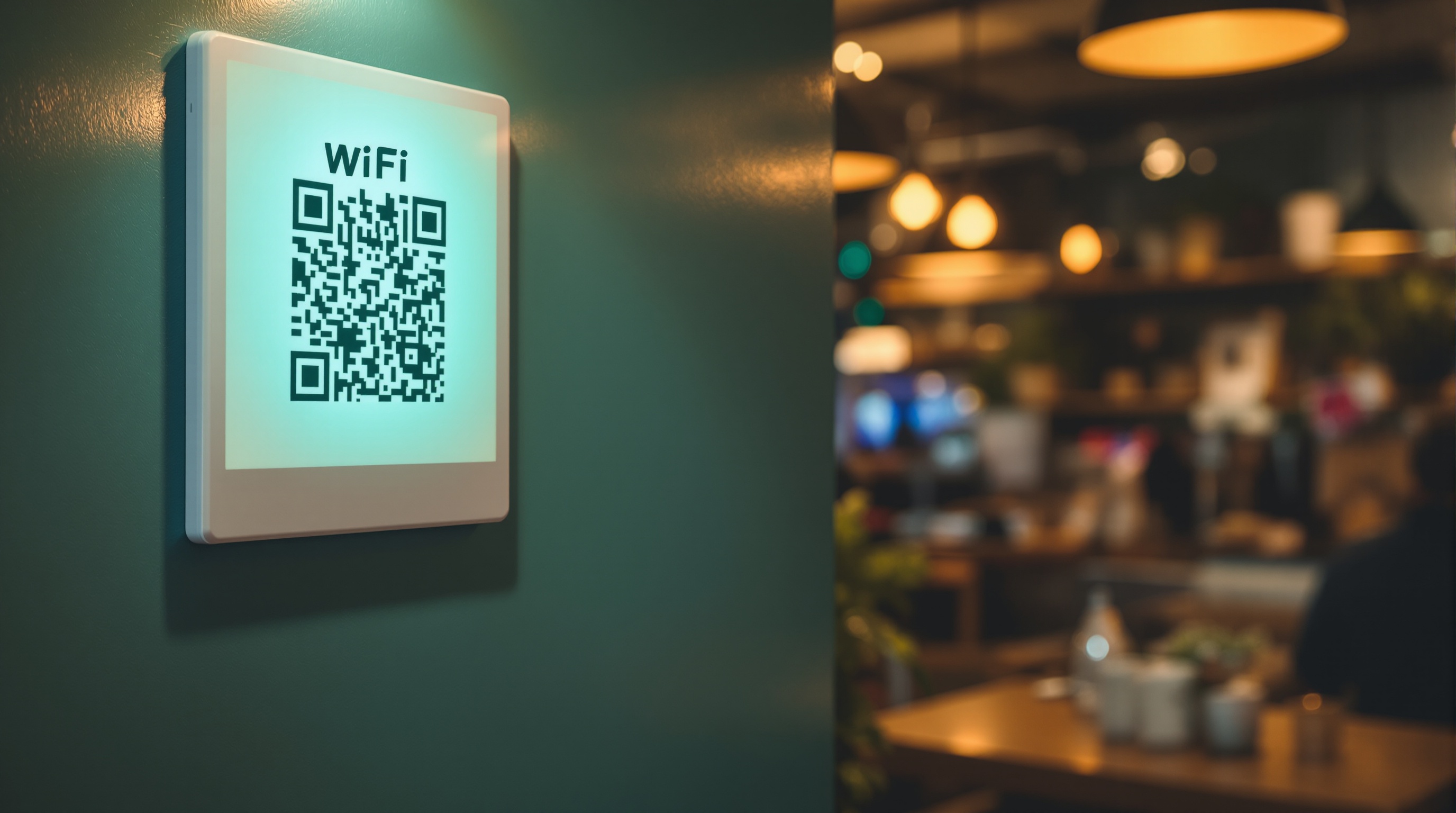
- Put it on a table card, welcome pack or reception sign at 3–5 cm.
- For guests, create a separate network so your main one stays secure.
Why Wi-Fi QR Codes Are a Game Changer
We've all been there — a guest asks for your Wi-Fi password and you find yourself spelling out a complex string of letters, numbers, and special characters. Or worse, you've written it on a sticky note that's been lost or faded. Wi-Fi QR codes solve this problem elegantly and instantly.
With a Wi-Fi QR code, guests simply scan the code with their phone's camera and connect to your network automatically. No typing, no errors, no frustration. It's the modern way to share network access.
What Information Does a Wi-Fi QR Code Contain?
A Wi-Fi QR code encodes the following network information:
- SSID — Your network name
- Password — Your network security key
- Encryption Type — WPA/WPA2/WEP or none (open network)
The QR code uses a standard format (WIFI:T:encryption;S:ssid;P:password;;) that most modern smartphones recognize instantly. When scanned, iOS and Android devices automatically prompt the user to join the network.
Where to Use Wi-Fi QR Codes
Cafes and Restaurants
Display Wi-Fi QR codes on tables, counters, or wall frames. Customers can connect in seconds without asking staff.
Hotels and Accommodations
Include Wi-Fi QR codes in welcome packets, room key cards, or bedside tables. Guests appreciate the hassle-free connectivity.
Offices and Coworking Spaces
Post Wi-Fi QR codes in meeting rooms, reception areas, and common spaces for visitors and employees.
Home Use
Frame a Wi-Fi QR code in your living room or guest bedroom. Your visitors will love the convenience.
Events and Conferences
Print Wi-Fi QR codes on attendee badges, event programs, or display screens for seamless connectivity.
How to Create a Wi-Fi QR Code
Creating a Wi-Fi QR code takes less than a minute using our WiFi QR Code Generator:
- Select the "Wi-Fi" category in the QR code generator
- Enter your network name (SSID)
- Enter your Wi-Fi password
- Select the encryption type (WPA/WPA2 is most common)
- Download your QR code in PNG, JPG, or SVG format
Print it, frame it, or display it digitally — your guests will connect instantly.
Security Considerations
While Wi-Fi QR codes are incredibly convenient, keep security in mind:
- Don't display Wi-Fi QR codes in publicly accessible areas if your network contains sensitive data
- Consider creating a separate guest network with limited access
- Change your Wi-Fi password periodically and update the QR code
- Use WPA2 or WPA3 encryption — avoid open networks
Conclusion
Wi-Fi QR codes are one of the simplest yet most impactful uses of QR technology. They save time, reduce frustration, and create a better experience for everyone. Whether you run a business or just want to be the host with the most convenient Wi-Fi setup, creating a Wi-Fi QR code is the way to go.
Frequently asked questions
Do phones need an app to join a WiFi QR code?
No. iPhones and Android phones recognise WiFi QR codes with the built-in camera and offer to join the network automatically.
Is a WiFi QR code safe?
It simply holds your network details, so treat the printed code like a written password. For guests, use a separate network with limited access and update the code when you change the password.
What encryption type should I choose?
Choose WPA/WPA2 for almost all modern networks. Only select the open option if the network genuinely has no password.
Can I make a WiFi QR code without a password?
Yes — choose the open network option. The phone will connect without prompting for a password.
QR Generator Editorial Team
Verified AuthorOur editorial team at QR Generator Online writes and reviews every article to keep it accurate, clear and genuinely useful. Each piece is fact-checked against current QR code standards, including the ISO/IEC 18004 specification, and updated when the details change. No fluff, no filler — just practical guidance you can apply right away.
Cite This Page
APA (7th Edition)
QR Generator Online. (2026-10-01). WiFi QR Code Guide for Home and Business. Retrieved ..., from https://qrgenrateronline.com/blog/wifi-qr-code-guide
MLA (9th Edition)
“WiFi QR Code Guide for Home and Business.” QR Generator Online, 2026-10-01. Web. .... <https://qrgenrateronline.com/blog/wifi-qr-code-guide>.
Chicago
QR Generator Online. “WiFi QR Code Guide for Home and Business.” Last modified 2026-10-01. Accessed .... https://qrgenrateronline.com/blog/wifi-qr-code-guide.
Citation formats provided for academic and professional reference. Always verify against your institution's style guide.
Make a WiFi QR code for your space
Enter your network name and password and download a ready-to-print WiFi QR code in seconds.
Create a WiFi QR codeRelated articles

How to Create a QR Code for Free (Step by Step)
Learn how to create beautiful, high-resolution QR codes online without paying a cent. Complete guide with step-by-step instructions for URLs, text, email, Wi-Fi, and more.

QR Codes for Business: A Complete Guide for 2026
Discover how businesses are using QR codes to boost customer engagement, streamline operations, and increase sales. Real examples and best practices included.
vCard QR Code for Business Cards: The Complete Guide
Replace traditional business cards with vCard QR codes. Share your contact details instantly with a single scan. Modern networking made simple.